> ## Documentation Index
> Fetch the complete documentation index at: https://docs.usedragonfly.xyz/llms.txt
> Use this file to discover all available pages before exploring further.
# Request builder
> Build and send HTTP requests from the Activity Bar, and read the response next to your code.
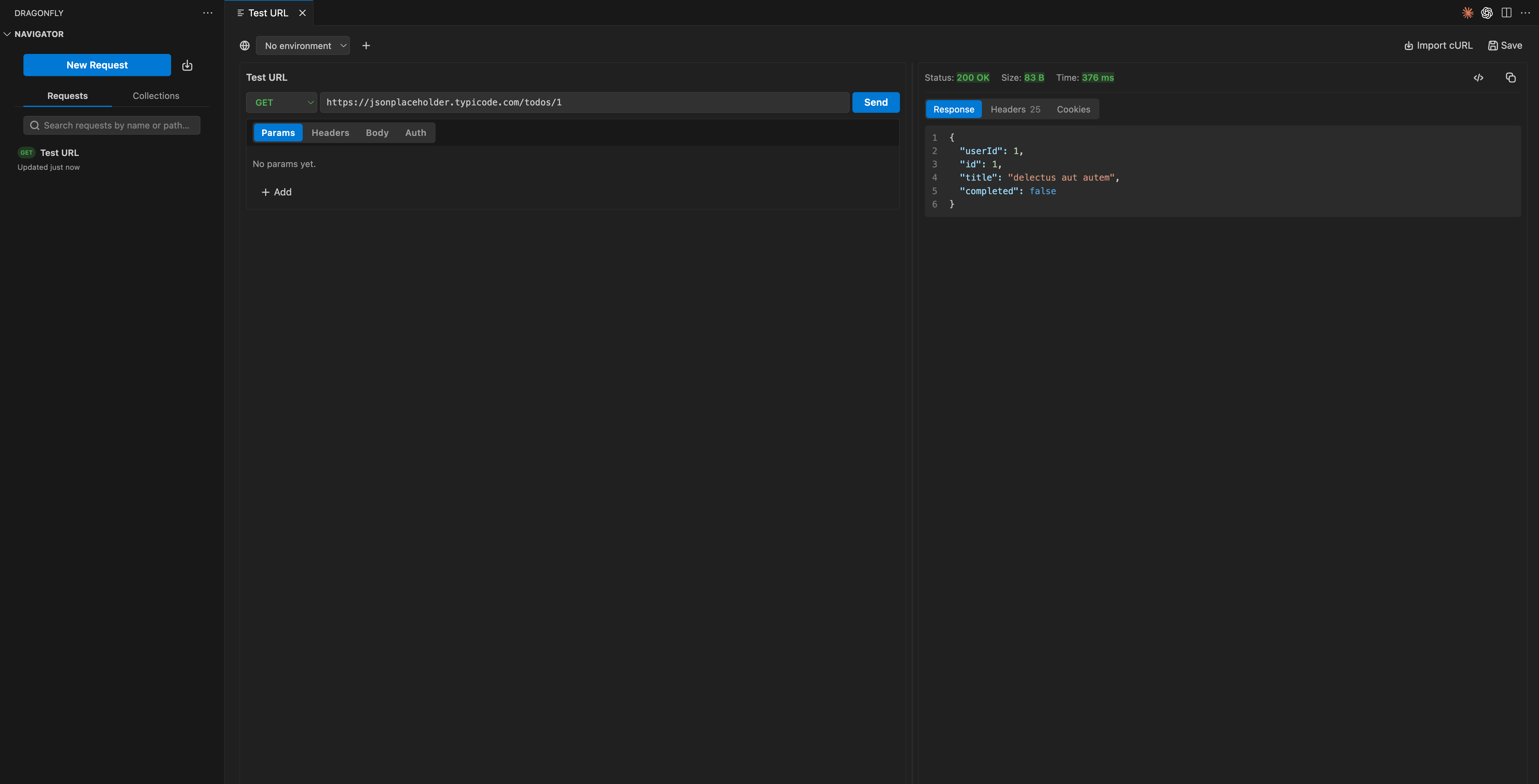
Dragonfly gives you a full request builder inside VS Code. Pick a method, set the URL, add what you need, and press **Send**. The response opens next to your code, so there is no second app to switch to.
 ## Build a request
A request is made of these parts:
Choose GET, POST, PUT, PATCH or DELETE, and set the URL. Use `{{variables}}` from your environment anywhere in the URL.
Add query parameters as key and value pairs. They are kept in sync with the URL.
Set request headers such as `Content-Type` or `Accept`.
Send a JSON or raw body for methods that take one.
Add Bearer, API key or Basic auth. See [Authentication](/guides/authentication).
Run the request and read the response inline.
## Read the response
When a request returns, Dragonfly shows the response next to your code with:
* **Status** of the response
* **Size** of the payload
* **Timing** for how long the request took
The body is rendered so you can read JSON responses clearly.
## Reuse a request
Save any request into a collection to keep it around, then open or resend it whenever you need it. Every request you send is also saved to [Request history](/guides/request-history) automatically.
Need the same request in a script? Copy it out as cURL, Node.js, Python, Go, PHP, Java or Rust. See [Copy as code](/guides/code-export).
## Build a request
A request is made of these parts:
Choose GET, POST, PUT, PATCH or DELETE, and set the URL. Use `{{variables}}` from your environment anywhere in the URL.
Add query parameters as key and value pairs. They are kept in sync with the URL.
Set request headers such as `Content-Type` or `Accept`.
Send a JSON or raw body for methods that take one.
Add Bearer, API key or Basic auth. See [Authentication](/guides/authentication).
Run the request and read the response inline.
## Read the response
When a request returns, Dragonfly shows the response next to your code with:
* **Status** of the response
* **Size** of the payload
* **Timing** for how long the request took
The body is rendered so you can read JSON responses clearly.
## Reuse a request
Save any request into a collection to keep it around, then open or resend it whenever you need it. Every request you send is also saved to [Request history](/guides/request-history) automatically.
Need the same request in a script? Copy it out as cURL, Node.js, Python, Go, PHP, Java or Rust. See [Copy as code](/guides/code-export).